
Getting your embed code
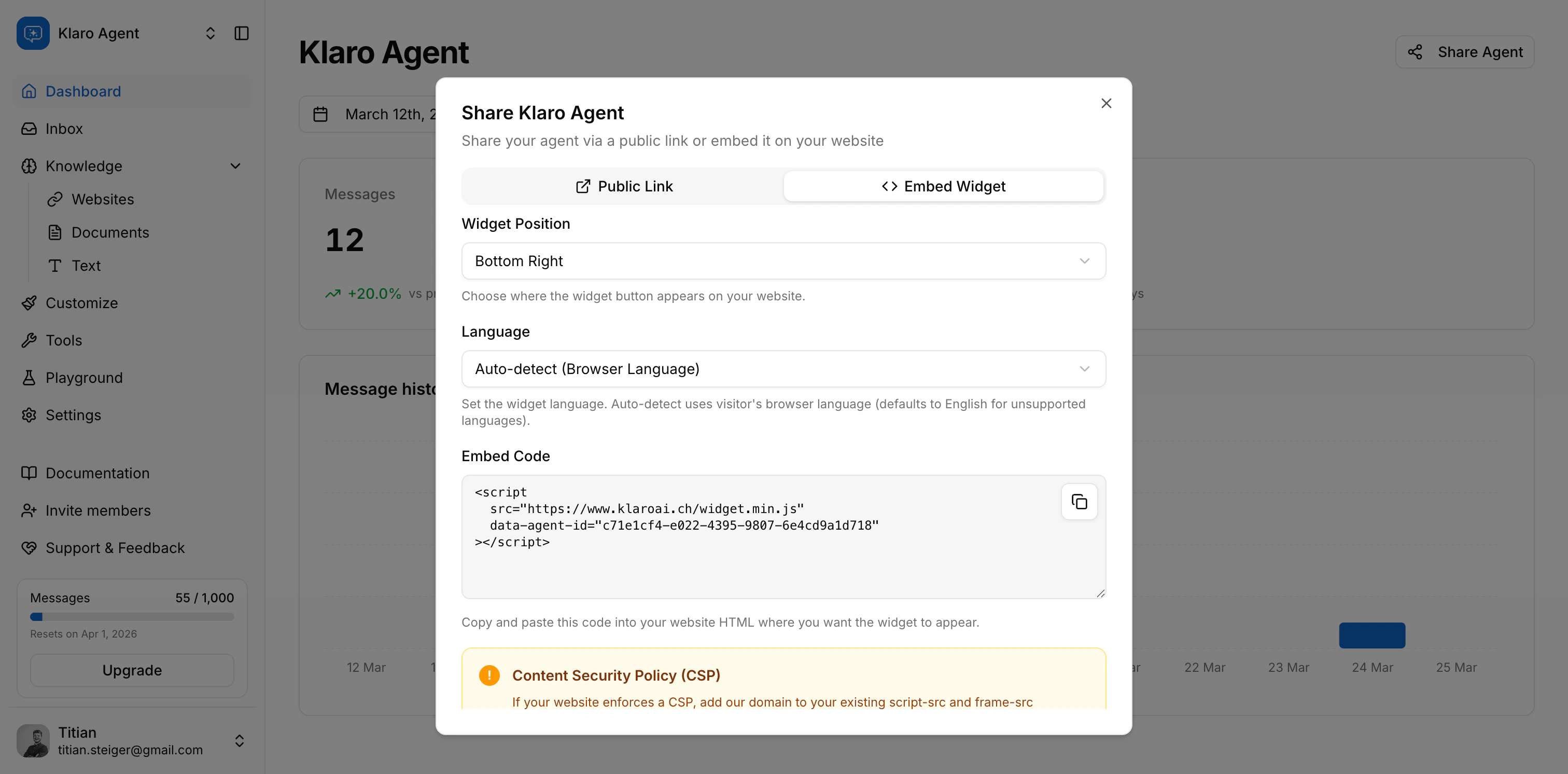
Your embed code lives on the Dashboard. Click the Share Agent button (top right) - it opens a dialog with two tabs: Embed Widget and Public Link.Owner only: The Share Agent button is only visible to workspace owners.
Embedding the widget
Paste the script tag into your site’s HTML, just before the closing</body> tag. A minimal embed looks like this:
data-agent-id is the only required attribute. Your agent ID is the UUID shown in the Share dialog (and visible in the URL when you’re inside your agent in the app).
The script loads asynchronously and injects a floating chat button into your page. It won’t block page rendering.
Optional attributes
The Share dialog lets you pick position and language visually before copying — the snippet updates automatically.
JavaScript API
Once loaded, the widget exposes a small API onwindow.KlaroAIWidget if you need programmatic control:
CSP (Content Security Policy)
If your site uses a Content Security Policy, you’ll need to add Klaro’s domain to two directives so the script can load and the chat iframe can render:The Playground
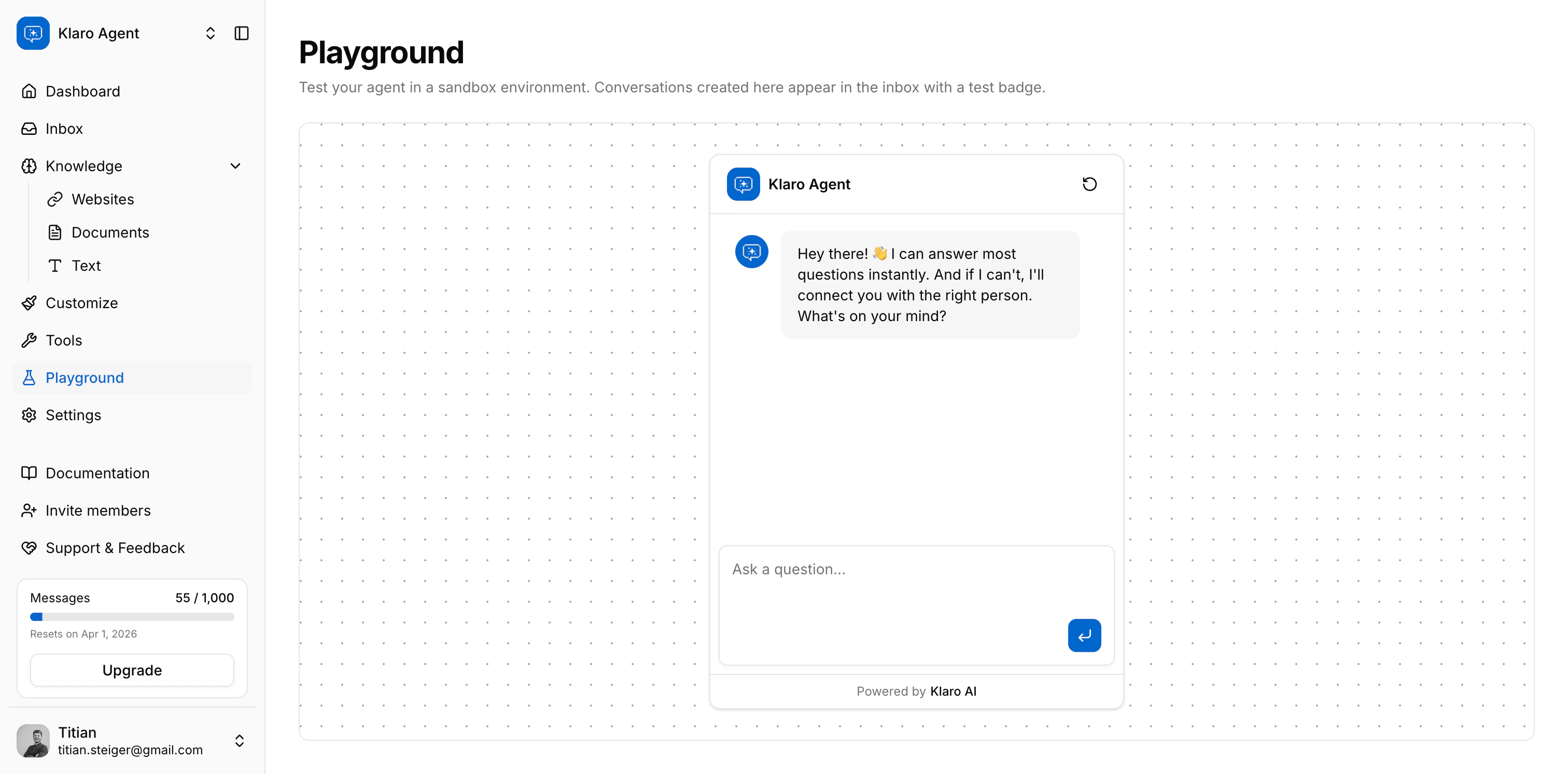
The Playground is a built-in test environment inside the app. Find it in the sidebar under Playground. It runs the same chat interface your visitors see, but inside your Klaro dashboard - no embed required. Use it to:- Test your agent’s responses after adding new knowledge sources
- Check how the system prompt changes behavior
- Verify tool behavior (escalation, lead capture) before enabling them on your live site
Playground conversations in the inbox
Every conversation you have in the Playground shows up in your Inbox - just like real visitor conversations. They’re marked with a small flask icon (🧪) in the conversation list so you can tell your own tests apart from real traffic. You can close or delete playground conversations from the inbox the same way as any other conversation.Public chat link
The Public Link tab in the Share dialog gives you a standalone URL that opens your agent in a full-page chat - no embed needed. It looks like:- Sharing the agent in an email or support ticket
- Internal testing without embedding on a page
- Running a quick demo with a prospect
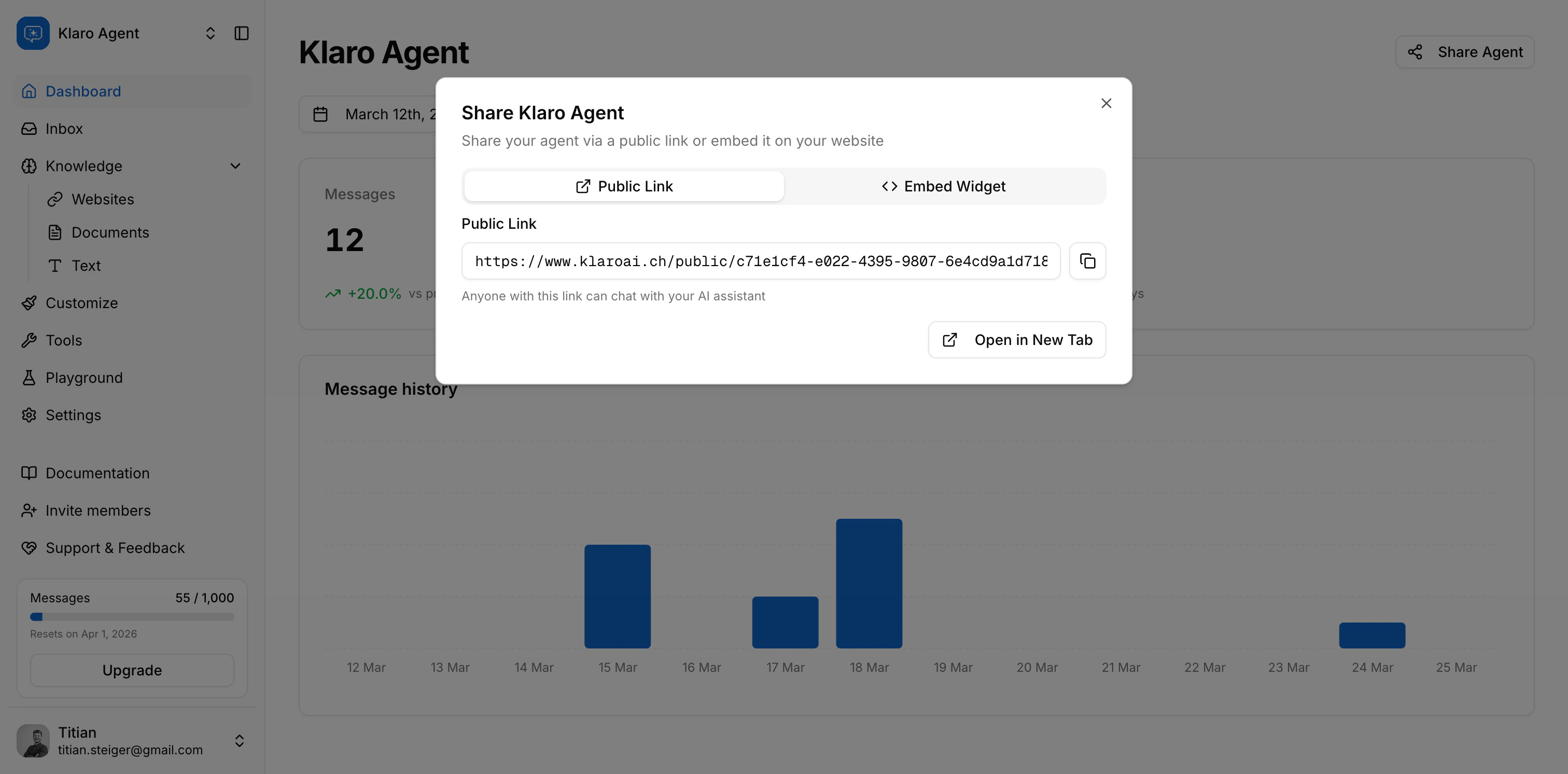
The public chat page and the embedded widget are separate surfaces but run the same agent. Conversations from both appear in your inbox - public link conversations show as regular widget conversations (no special badge).
You’re all set. At this point you’ve covered everything in this guide — from setting up your agent to embedding it and managing conversations. If something isn’t covered here, reach out to our team.