
What is an agent? What is a workspace?
Two concepts show up everywhere in Klaro AI, so let’s get them straight upfront. A workspace is your account’s home base. It holds your team members, your billing plan, and all your agents. Think of it as your company’s account - everything you do in Klaro AI lives inside a workspace. An agent is the actual AI chatbot you build. Each agent has its own:- Name, branding, and widget appearance
- Knowledge sources (the content it’s trained on)
- System prompt and behavior settings
- Conversation inbox
tl;dr: Workspace = your account. Agent = your chatbot.
Your first time: the onboarding flow
When you create your first agent, Klaro AI walks you through a three-step setup wizard. Here’s what each step does: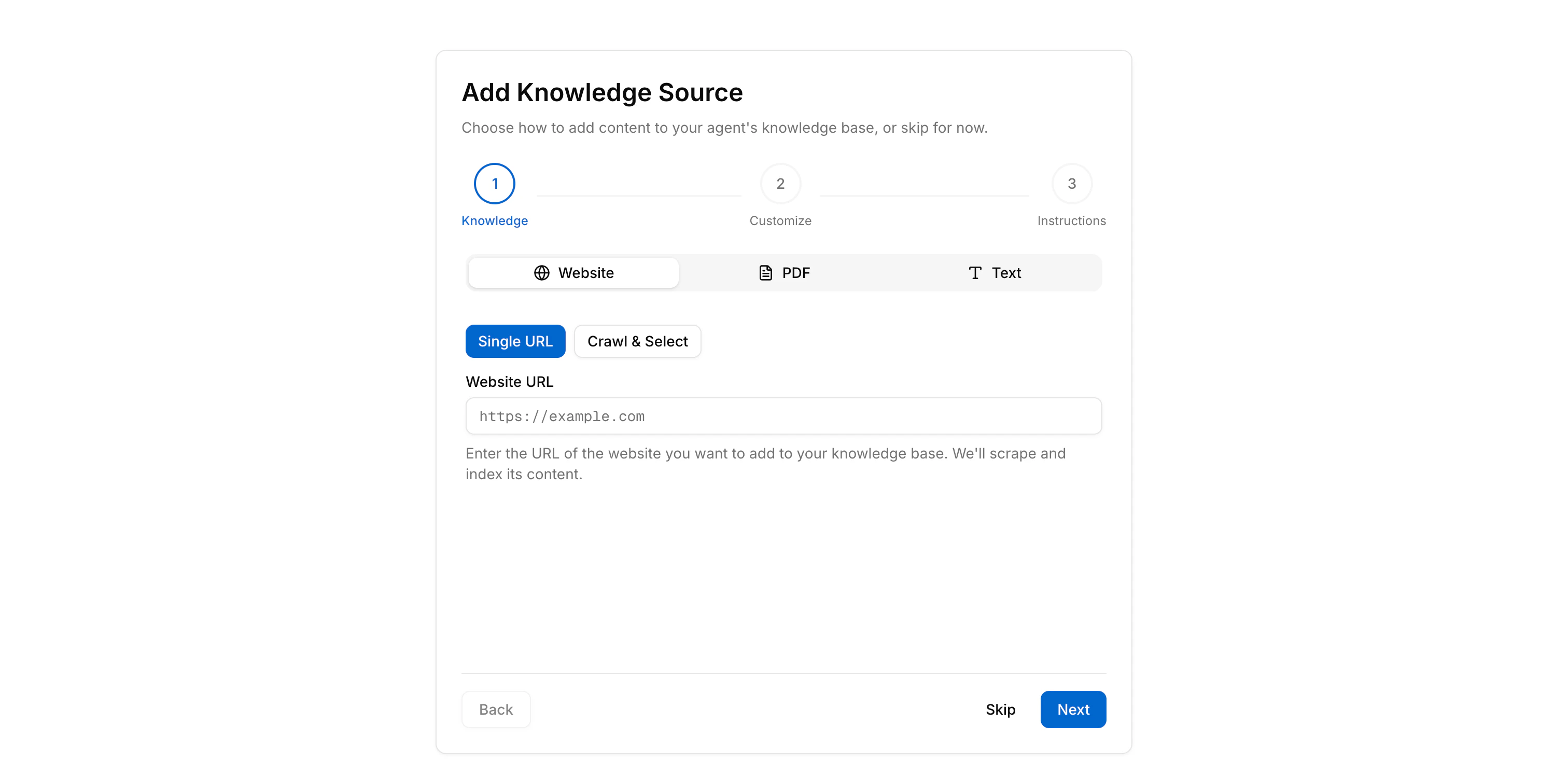
Step 1 - Add a knowledge source
This is where you give your agent something to know. You can add a website (Klaro will crawl it), upload a PDF, or paste in text directly. You can skip this step and add sources later - your agent will still work, it just won’t have any specific knowledge yet.Step 2 - Customize your agent
Give your agent a name and pick a primary color. You can also upload an icon and decide whether your branding shows in the widget header. These settings affect how your agent looks to customers - you can always change them later under Customize.Step 3 - Set instructions
This is your agent’s system prompt - the instructions that shape how it behaves. You can pick a starting point (General, Customer Support, or Sales) and adjust from there. Use one of the presets and refine it once you’ve seen the agent in action.After onboarding: where to go next
Once you finish the wizard, you land on the Dashboard. From there, the sidebar is your guide: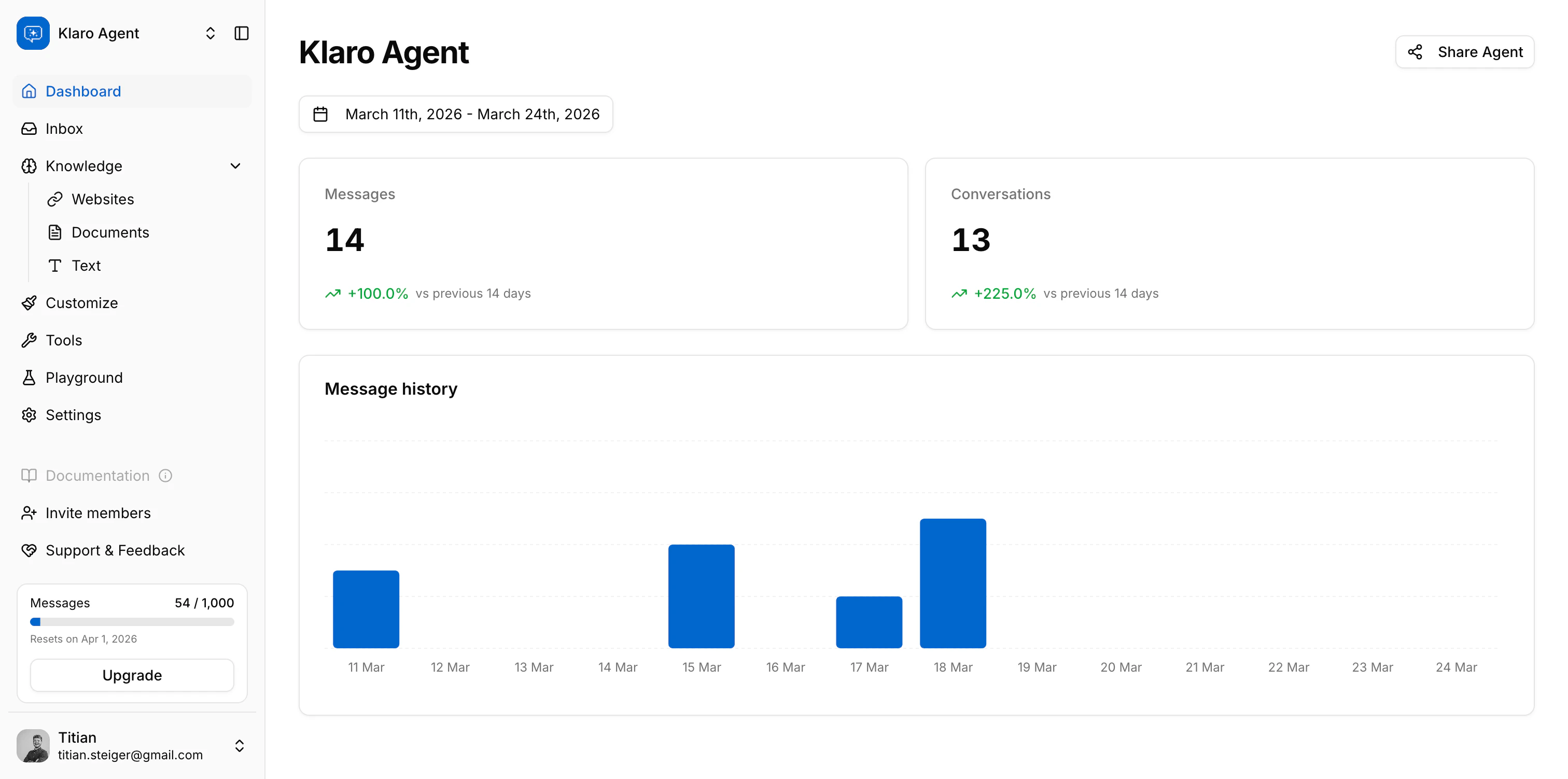
Workspace roles
Every member of your workspace has one of three roles. Here’s what each can do:
When you invite someone, you assign them Editor or Viewer - only the original account creator is an Owner.
Billing is owner-only. If a team member sees a message about upgrading but can’t access the billing page, that’s expected - send them your way.
Why some features may be locked
Klaro AI has four plans: Free, Starter, Builder, and Pro. Certain features are gated by plan:- Agent tools (human escalation, lead capture) require Builder or Pro
- Removing Klaro branding from the widget requires Pro
- Usage caps - messages per month, knowledge sources, website crawls - vary by plan
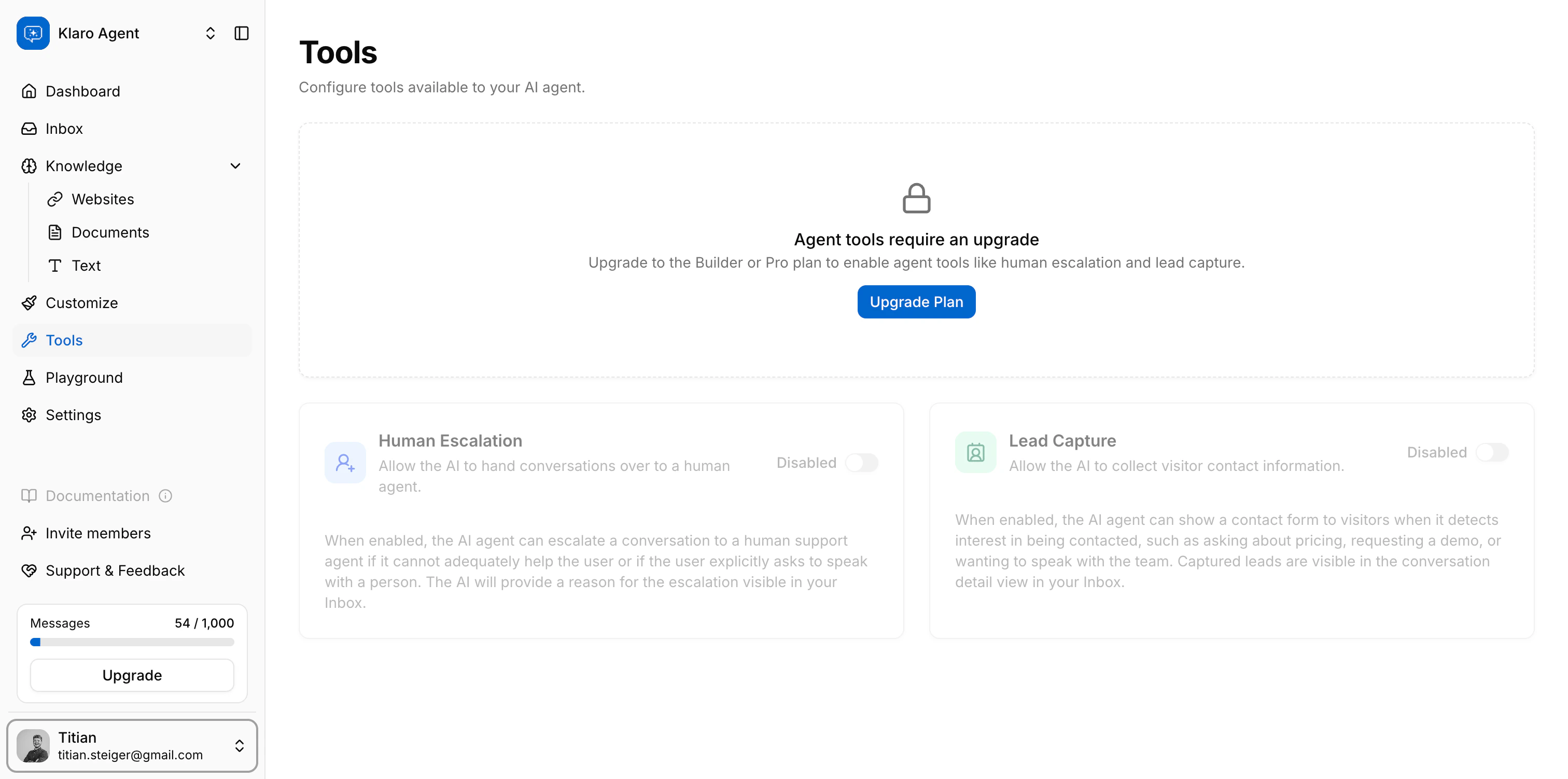
If you’re not the workspace owner, you won’t have access to the Billing page - ask your owner to review the plan.
Next up: Configure → Customize - set your agent’s name, colors, AI behavior, and content settings.