
Access: You need Editor or Owner access to customize an agent. Viewers can’t open this page.
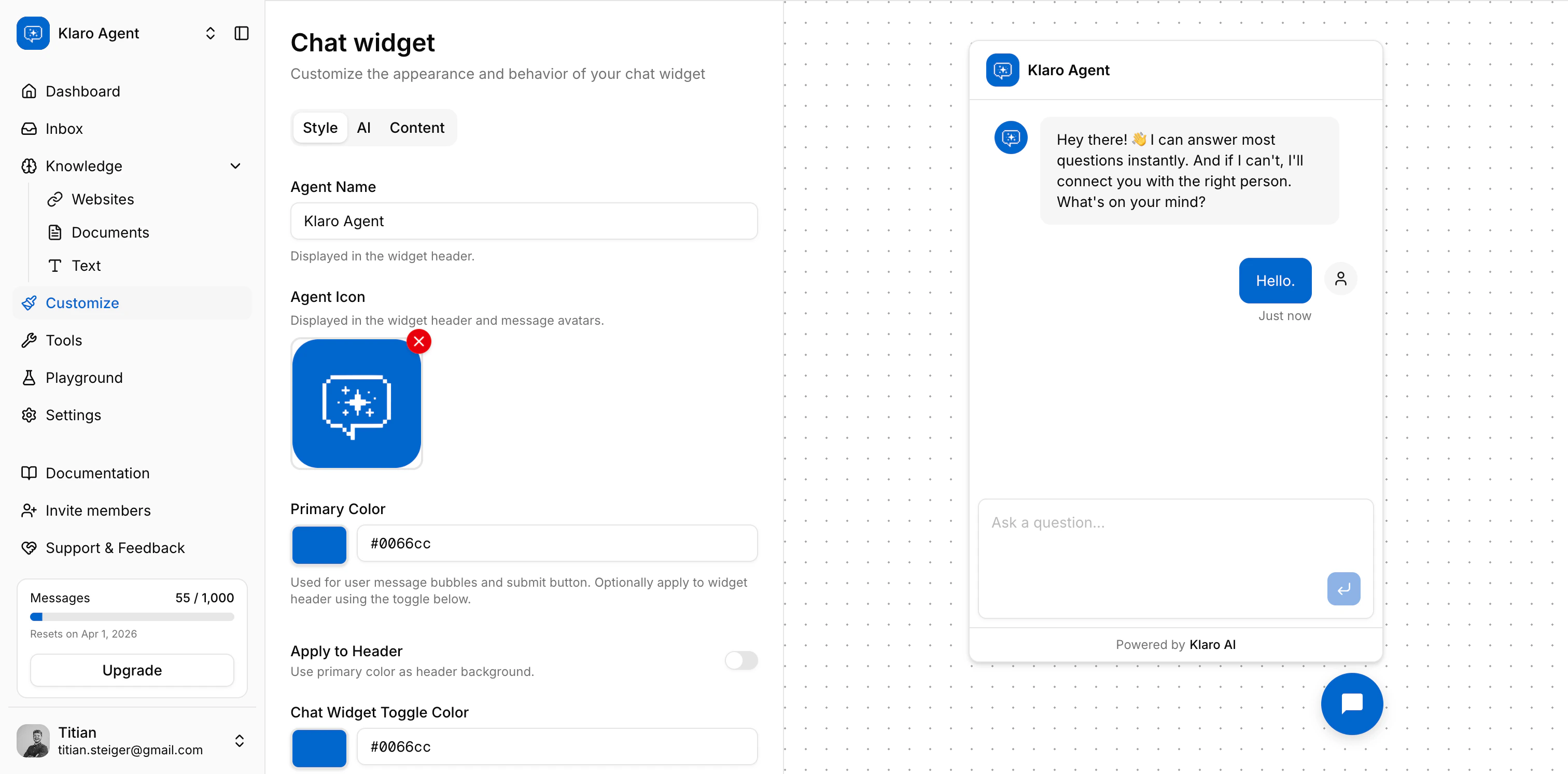
Style
These settings control your agent’s visual appearance inside the chat widget.Agent Name
The name shown in the widget header and anywhere the agent introduces itself. Keep it short and on-brand - 50 characters max.Agent Icon
A small image shown in the widget header and next to each agent message bubble. Accepted formats: PNG, JPG, GIF, WebP, SVG - max 2 MB. If you leave this empty, the widget uses a default avatar.Primary Color
The color used for user message bubbles and the send button. Enter any valid hex value (e.g.#1A73E8). You can type directly or use the color picker.
Toggle Apply to Header to also use this color as the widget header background. Useful if you want a branded look end-to-end.
Chat Widget Toggle Color
The background color of the floating button that opens the widget on your site. Defaults to black (#000000) - change it to match your site’s design.
Chat Widget Toggle Icon
An optional custom icon for the floating toggle button. Same format/size rules as the Agent Icon.Hide “Powered by” Branding
Removes the Klaro AI credit from the widget footer. This is a Pro plan feature - if you’re on a lower tier, you’ll see a link to upgrade.AI
These settings control how your agent generates responses.Instructions (System Prompt)
This is the most impactful setting on this page. The system prompt tells the agent who it is, what it does, and what it should never do. A well-written prompt significantly improves response quality. A solid prompt typically covers:- The agent’s role (“You are a support assistant for Acme Inc.”)
- Tone and personality (“Respond concisely and in a friendly tone.”)
- Hard constraints (“Never discuss competitor products. Always recommend contacting support for billing questions.”)
- What to do when the agent doesn’t know something
AI Model
The model currently powering your agent. This is set by Klaro AI and isn’t configurable in-app - we keep it updated to the best available option for your use case for now.Temperature (gpt-4 models only)
Controls how creative or predictable the responses are. The slider goes from 0 (very consistent and conservative) to 1 (more varied and creative). For support use cases, we recommend staying between 0.3–0.6 reliable enough to be accurate, flexible enough to sound natural. This setting only appears if your agent is running on a gpt-4 series model.Formal Tone
Toggle this on if you want the agent to use formal language (e.g. German “Sie” instead of “du”). Useful for business contexts where a formal register is expected.Content
Content settings control the text the agent shows in the widget UI itself - not the AI’s conversational responses, but the hardcoded strings like greetings and placeholders. Each field has separate values for English (EN) and German (DE). Toggle between languages using the EN / DE buttons next to each field. At runtime, Klaro serves whichever language matches the visitor’s locale and falls back to English if a translation isn’t set.Welcome Message
The first message a visitor sees when they open the widget, before they’ve typed anything. Make it warm and clear about what the agent can help with. Example: “Hi there 👋 I’m here to help. Ask me anything about our products.”Fallback Message
Shown when the agent can’t find a relevant answer in its knowledge base. Set an expectation and give the visitor a next step - don’t leave them hanging. Example: “I don’t have a good answer for that right now. Feel free to reach out to our team directly at support@acme.com.”Input Placeholder
The hint text shown inside the chat input field before the visitor starts typing. Keep it short and action-oriented. Example: “Ask a question…”How localization works at runtime
When a visitor opens your widget, Klaro determines their locale from the URL (e.g./de/embed/... vs /en/embed/...) or their browser’s Accept-Language header. It then serves:
- The matching language content from
content_i18n(EN or DE) - English as a fallback if the matched language has no content set
Next up: Configure → Tools — add the content your agent will draw answers from.