> ## Documentation Index
> Fetch the complete documentation index at: https://www.klaroai.ch/docs/llms.txt
> Use this file to discover all available pages before exploring further.

# Widget & Playground

This page covers how to embed your agent on your website, how to test it before going live, and how to share a standalone chat link.

***

## Getting your embed code

Your embed code lives on the **Dashboard**. Click the **Share Agent** button (top right) - it opens a dialog with two tabs: **Embed Widget** and **Public Link**.

> **Owner only:** The Share Agent button is only visible to workspace owners.
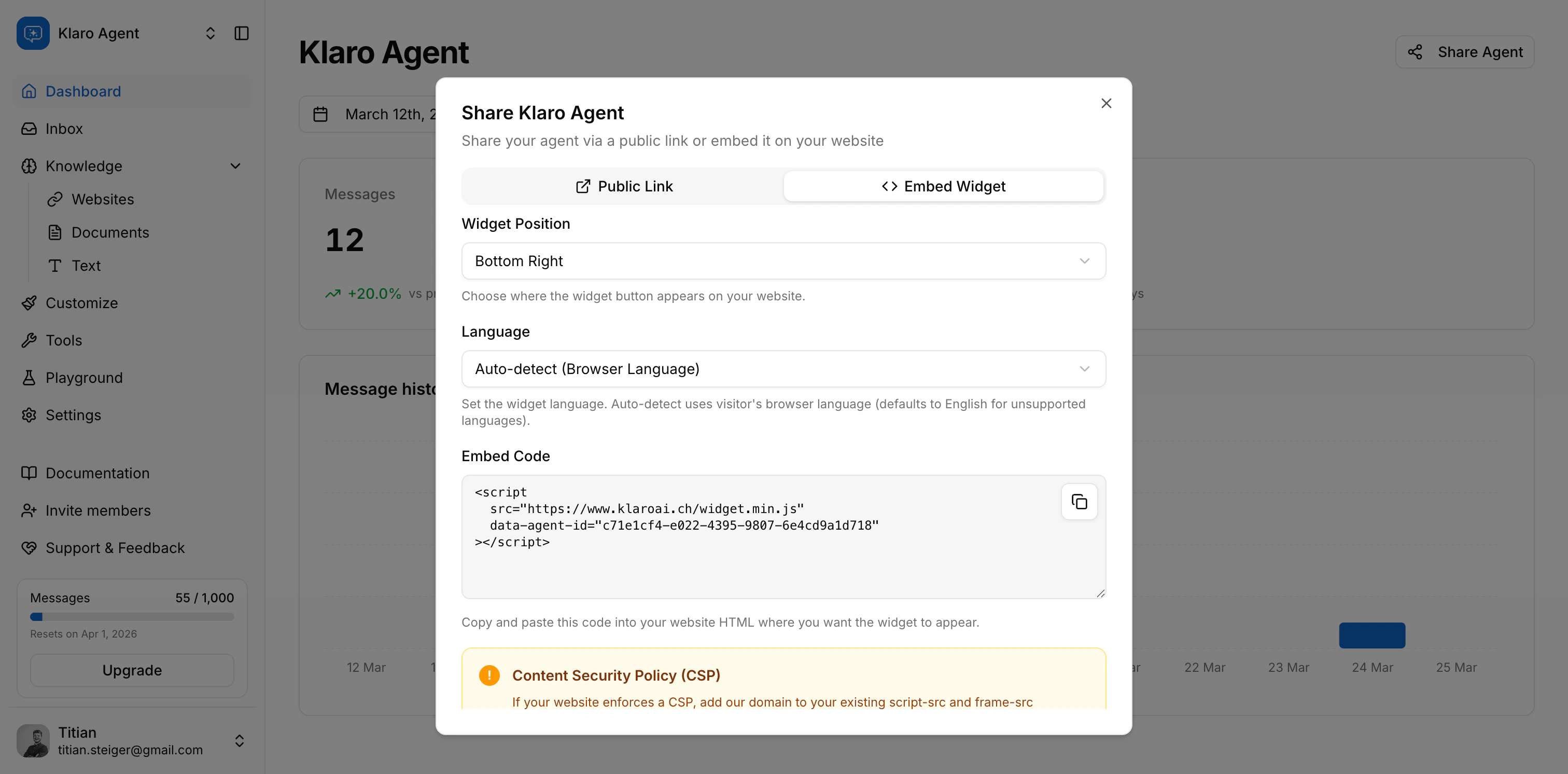
<Frame>
  <img src="https://mintcdn.com/tstgdev/1jTEEgvJDfcb_O5Q/images/embed-widget-en.png?fit=max&auto=format&n=1jTEEgvJDfcb_O5Q&q=85&s=7592566a3c12fac6a35df6fbd026665d" alt="Embed Widget" width="3024" height="1492" data-path="images/embed-widget-en.png" />
</Frame>

***

## Embedding the widget

Paste the script tag into your site's HTML, just before the closing `</body>` tag. A minimal embed looks like this:

```html theme={null}
<script 
  src="https://www.klaroai.ch/widget.min.js" 
  data-agent-id="[agent-id]"
></script>
```

`data-agent-id` is the only required attribute. Your agent ID is the UUID shown in the Share dialog (and visible in the URL when you're inside your agent in the app).

The script loads asynchronously and injects a floating chat button into your page. It won't block page rendering.

### Optional attributes

| Attribute       | Values                                                 | Default        | What it does                                                                                               |
| --------------- | ------------------------------------------------------ | -------------- | ---------------------------------------------------------------------------------------------------------- |
| `data-position` | `bottom-right`, `bottom-left`, `top-right`, `top-left` | `bottom-right` | Sets where the toggle button appears on screen                                                             |
| `data-lang`     | `en`, `de`                                             | Auto-detect    | Fixes the widget language. If omitted, Klaro uses the visitor's browser language and falls back to English |

The Share dialog lets you pick position and language visually before copying — the snippet updates automatically.

### JavaScript API

Once loaded, the widget exposes a small API on `window.KlaroAIWidget` if you need programmatic control:

```js theme={null}
window.KlaroAIWidget.open()    // open the chat
window.KlaroAIWidget.close()   // close the chat
window.KlaroAIWidget.toggle()  // toggle open/closed
window.KlaroAIWidget.destroy() // remove the widget from the page
```

***

## CSP (Content Security Policy)

If your site uses a Content Security Policy, you'll need to add Klaro's domain to two directives so the script can load and the chat iframe can render:

```text theme={null}
script-src  https://www.klaroai.ch;
frame-src  https://www.klaroai.ch;
```

Add these to your existing CSP - don't replace what's already there. The Share dialog shows the exact values to copy.

***

## The Playground

The **Playground** is a built-in test environment inside the app. Find it in the sidebar under **Playground**.

It runs the same chat interface your visitors see, but inside your Klaro dashboard - no embed required. Use it to:

* Test your agent's responses after adding new knowledge sources
* Check how the system prompt changes behavior
* Verify tool behavior (escalation, lead capture) before enabling them on your live site

<Frame>
  <img src="https://mintcdn.com/tstgdev/1jTEEgvJDfcb_O5Q/images/playground-en.png?fit=max&auto=format&n=1jTEEgvJDfcb_O5Q&q=85&s=382a8cf8c2a6f26c767be47178d203b8" alt="Playground" width="3024" height="1492" data-path="images/playground-en.png" />
</Frame>

### Playground conversations in the inbox

Every conversation you have in the Playground shows up in your Inbox - just like real visitor conversations. They're marked with a small flask icon (🧪) in the conversation list so you can tell your own tests apart from real traffic.

You can close or delete playground conversations from the inbox the same way as any other conversation.

***

## Public chat link

The **Public Link** tab in the Share dialog gives you a standalone URL that opens your agent in a full-page chat - no embed needed. It looks like:

```text theme={null}
https://www.klaroai.ch/public/[agent-id]
```

Anyone with this link can chat with your agent. It's useful for:

* Sharing the agent in an email or support ticket
* Internal testing without embedding on a page
* Running a quick demo with a prospect

The public page uses the same language fallback logic as the widget - visitor's browser language, defaulting to English if the language isn't supported.

<Frame>
  <img src="https://mintcdn.com/tstgdev/1jTEEgvJDfcb_O5Q/images/share-agent-en.png?fit=max&auto=format&n=1jTEEgvJDfcb_O5Q&q=85&s=63f1c25432aed09b410829d422b74608" alt="Share Agent" width="3024" height="1492" data-path="images/share-agent-en.png" />
</Frame>

> The public chat page and the embedded widget are separate surfaces but run the same agent. Conversations from both appear in your inbox - public link conversations show as regular widget conversations (no special badge).

***

**You're all set.** At this point you've covered everything in this guide — from setting up your agent to embedding it and managing conversations. If something isn't covered here, [reach out to our team](mailto:titian@klaroai.ch).
